Progress
The Progress tab answers a question that is hard to answer from memory: what changed on this roadmap, and when.
What it does
Progress keeps an automatic change log. As you edit the roadmap — statuses, priorities, owners, target periods, blockers, added and removed items — Roadmap Flow records each meaningful change. You never start a tracker; it is always on.
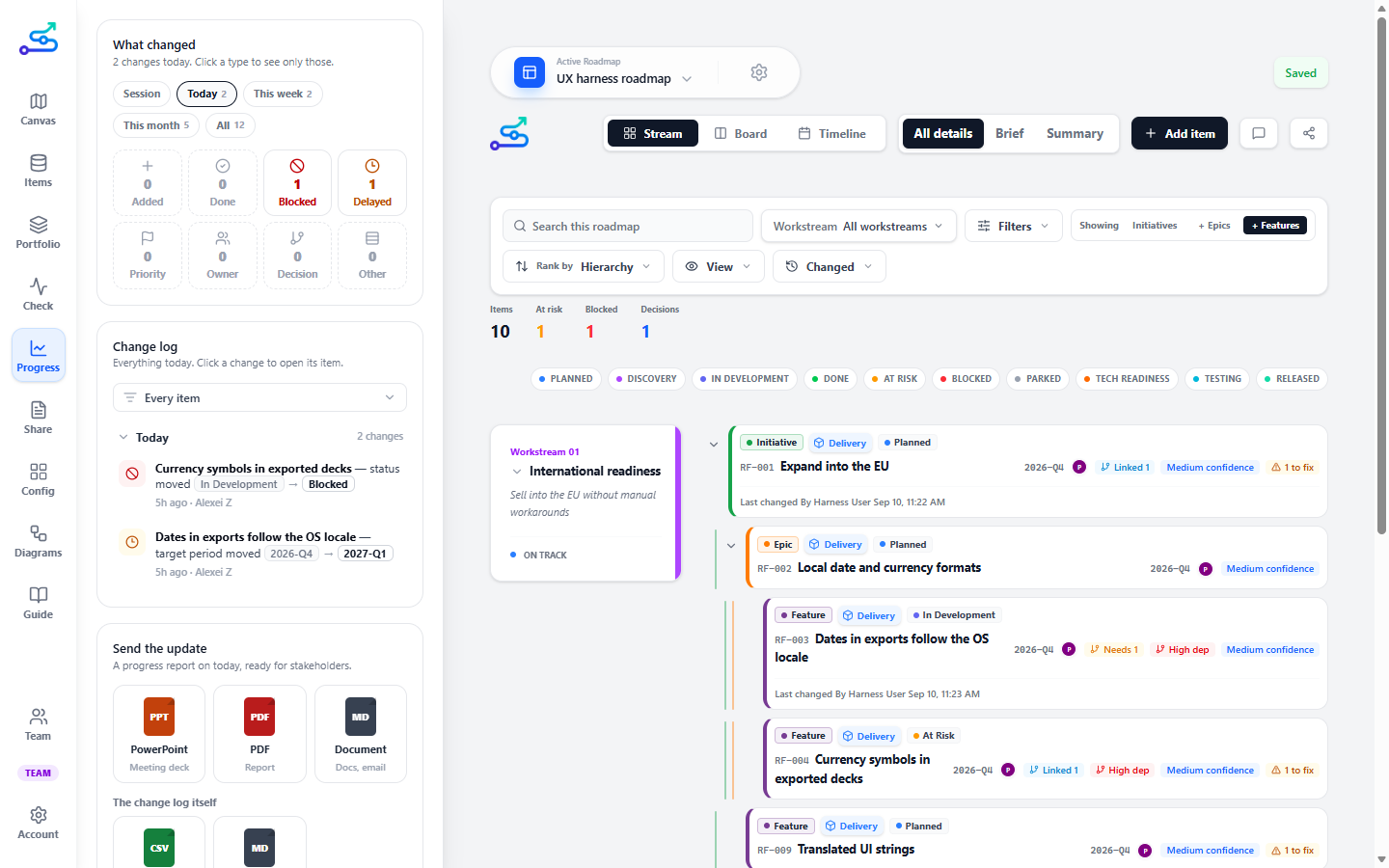
You read the log through five periods, picked as chips at the top of What changed: Session, Today, This week, This month and All. Each chip shows how many changes it holds, and the line under the card's title says how many are in the one you picked.
Progress opens on the most recent window that has something in it. A session starts when the app starts, so the morning after a day of edits it opens on Today or This week rather than an empty Session — and while you are working it stays on Session, where your own changes land.
Under the chips, a tile for each kind of change counts it for that period. A kind with nothing in it is a faint, dashed tile. Click a tile and the change log below shows only that kind, straight away; click it again to see everything. The change log groups by day and each day can be folded.
Section order
What changed
The period, and a tile for each kind of change.
Change log
Read the detail by day — the tiles above filter it.
Send the update
The period as a report, or the log as a file.
Milestones
Save a snapshot before a review.
Before a review
What feedback is open, what is ready to hand over.
Saved views
Recall a canvas configuration (Pro).
When to use it
- Before a stakeholder meeting, to prepare an honest "here is what moved".
- In a weekly update, to summarise the week without trusting memory.
- To save a milestone snapshot before a review starts.
- To export a progress report.
When not to use it
- When you need to compare the roadmap against a specific past commitment — that is a milestone, not the rolling log.
- For per-person attribution on a single-user workspace. The log records what changed; the "By [name]" label only appears when a Display name has been set in Account → Display name.
Reading change log rows
Each row shows:
- An icon for the kind of change, in the same colour as its tile above.
- A bold item title and what changed, with the value before and after as two small labels.
- When it happened — hover to see the full date and clock — and, on the Team plan, who made the change.
- Clicking a row (for item changes) opens the item detail view.
A new item on the roadmap.
An item moved to Done or Released.
An item became blocked, or its blocked reason changed.
A target period moved later.
The priority changed.
The owning team changed.
An item was flagged as needing a decision.
Everything else: titles, dates, placement, workstreams.
From a tile to the canvas
With a tile picked, Show on canvas appears under the tiles. It switches to the canvas, rings those items in blue and scrolls to the first one. A banner above the filter bar shows the count and a Clear button.
Sending the update
Send the update sits under the change log. The top row makes a progress report — PowerPoint, PDF or a Document in Markdown — covering the whole period you picked. The row below, The change log itself, saves the log as a Spreadsheet (CSV) or a Document, and those two hold exactly what the change log shows: pick a tile or an item first and the file follows it.
Who changed what (Team)
There is one change log. On the Team plan each entry also shows who made the change.
Finding one item
The picker at the top of the change log narrows it to a single item. It opens in place with a search box — type a name or a number such as RF-004, and Enter picks the first match — a chip for each level, and the items grouped by workstream in roadmap order, features under their epic. Each shows its level colour, its number and how many changes it has. Items that have since been deleted are listed at the end, under No longer on the roadmap. The cross beside the picker shows every item again.
There used to be a second section called Team attribution listing the same edits again in different words. It is gone; attribution is now a column on the one log rather than a feed of its own.
A person appears by name when they had a Display name set at the time of the change. Changes made before that appear unnamed and cannot be renamed retroactively — ask people to set one in Account → Identity → Display name.
One item's story
Every item carries the same record for itself. Open the item and fold out History at the bottom of the panel: every change to it, newest first, folded by day, with who made it on the Team plan. Search it by field, value or name, or narrow it to Status, Dates, Placement, Details or Dependencies. The "Last changed" line at the top of the panel has a See all changes link that takes you straight there.
Everything you can set in the panel is recorded — including horizon, type, level, parent, streams and build order. A description edit is recorded as edited, without the old text, so your workspace does not keep every draft.
The workspace keeps its most recent 10,000 changes, across all its roadmaps. Once it is full, the oldest go first, and the History section says from which date it still has them.
Before a review
One card with two numbers at the top — open feedback, and how many items are ready to hand over — then the lists behind them, which you would otherwise have to open items one at a time to build:
- Open feedback (Team) — every item with unresolved review comments, busiest first. Export sends the whole roadmap's open feedback to Markdown.
- Handover readiness — every item at the tech-readiness gate, marked Ready or with the number of gaps still to fill.
Both link straight to the item.
3-minute flow
- Open the Progress tab.
- Pick a period — This week is the usual choice for an update.
- Read the tiles for the shape of change; click one, such as Blocked, to see only those in the log.
- Open a day in the change log to read the detail, or pick one item to follow.
- In Send the update, click PowerPoint, PDF or Document for the report — or save the change log itself as a Spreadsheet or Document.
- If you are about to run a review meeting, name a snapshot in Milestones and save it now, so you can compare before and after.
- Before the meeting, check Before a review for open feedback and anything at the handover gate that is not ready yet.
Best use cases
- "What changed this week" updates.
- Reviewing roadmap movement before a meeting.
- A written progress report drawn from real history.
- Saving and comparing milestones around a review cycle.
Common mistakes
- Forgetting which period is picked. A quiet log often just means the period is too short — the chips show how many changes each one holds.
- Leaving a tile picked. The log, and the log files, then hold only that kind — click the tile again, or Show all, to see everything.
- Saving a milestone after the meeting instead of before — the comparison loses the pre-meeting baseline.
Related guide pages
Availability
Free. The change log and Markdown export are free; PDF and PowerPoint progress reports and attributed change history are Pro / Team.