Items
The Items tab is the roadmap as a working list — searchable, sortable, groupable, and filterable. It is the fastest way to find and triage items.
What it does
Items shows every item on the active roadmap as a list of rows. You can:
- Search across title, description, and notes.
- Sort by priority, status, horizon, most recently changed, or A–Z.
- Group by status, horizon, or workstream — or not at all.
- Filter by workstream, status, horizon, and type — all in one panel.
Each row shows the signals that matter at a glance: a priority accent stripe, type icon, workstream, status badge, owner, and labelled indicators for decisions needed, links, and votes. Clicking a row opens the item.
Import sits beside Add item, because importing is how you create items in bulk. See Import.
The Roadmap items view contains planned work. Feedback inbox holds original requests, including those already grouped or declined. Opportunities groups related needs and offers optional MICE assessment before you choose work. See Feedback to opportunities and delivery.
When to use it
- When you know what you are looking for and want it now.
- When you are triaging — working down items by priority or status.
- When you want a quick count, like "how many P0s are blocked".
When not to use it
- When you are presenting. A list is for working; the canvas is for showing.
- When you want roadmap quality scored — use Check.
3-minute flow
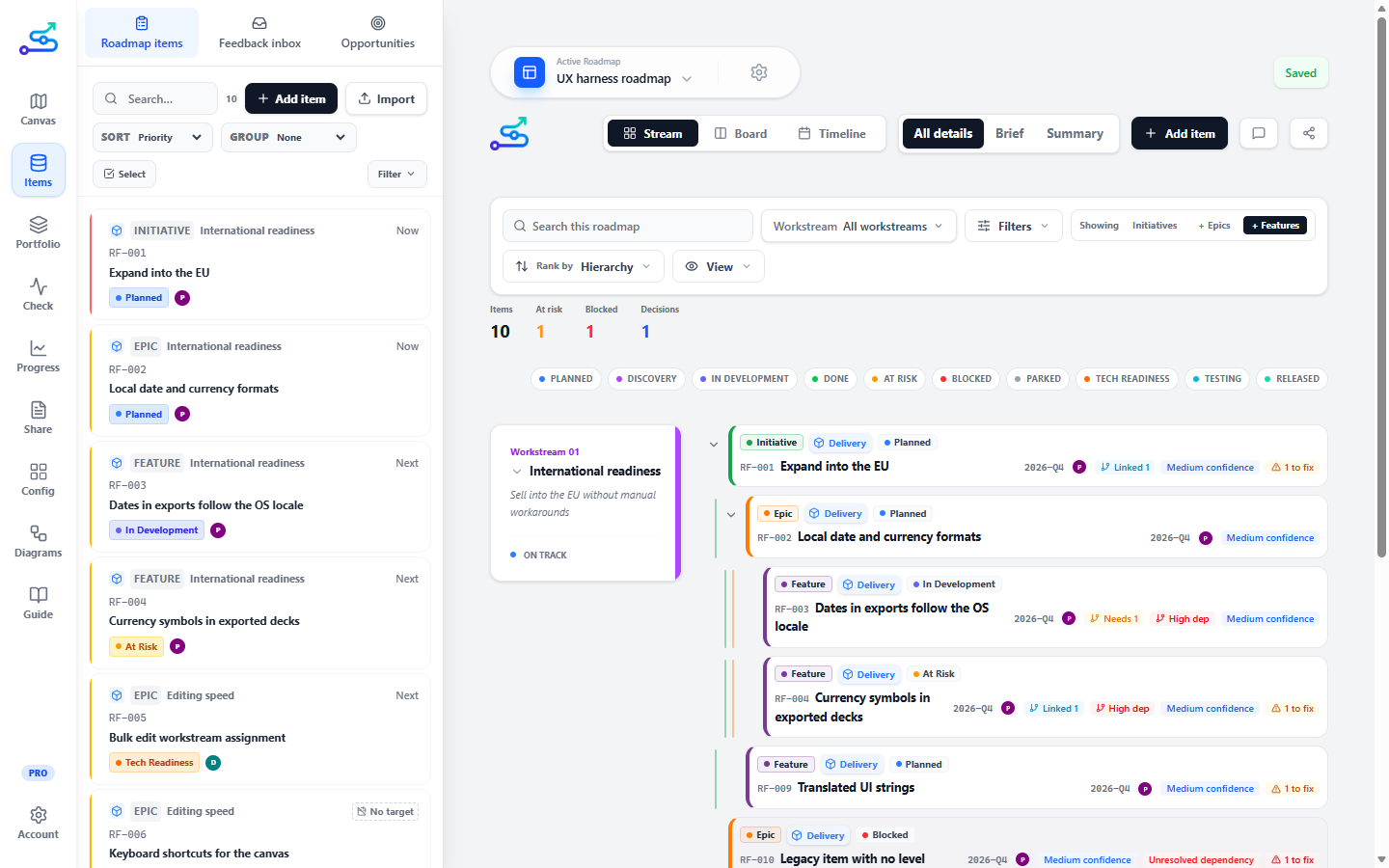
- Open the Items tab.
- Type in the search box, or pick a sort order.
- Group by workstream or status to scan a section at a time.
- Click Filter to expand the filter panel, then pick workstream, status, horizon, or type chips to narrow the list.
- Click a row to open the item and make changes.
Filtering
Click Filter (top right of the toolbar) to open the filter panel. All filters live in one place:
Show only items from one workstream.
Show only items with specific statuses.
Show only Now, Next, Later, or Not Doing items.
Show only a specific item type (Discovery, Delivery, GTM, etc.).
No target date sits above the others under Needs attention, because it asks a different kind of question: not "which of these" but "what is unfinished". It carries its own count, and it only appears when there is something to find. It is also the filter the Timeline turns on for you — pressing the Timeline's count of undated items opens this list already narrowed to them, ready for Select and a target period in one action.
A start period is not a target. An item that has begun and has no end date still shows up here, because a target is what a roadmap is read for.
The Filter button shows a badge with the count of active filters. Clear all filters resets everything at once.
Sort and Group
Sort and Group are display controls — they change how the list is arranged without hiding items:
- Sort by Priority (default), Status, Horizon, Level, Build order, Recent, or A–Z.
- Group by Status, Horizon, or Workstream. Group headers are sticky so you can always see which group you are reading while scrolling.
Each roadmap remembers its own sort and grouping on your computer, so a list ranked by Build order is still ranked that way when you come back to it.
Build order lists the items that have an implementation order first, in their order, and everything else after them. Each numbered row shows its number and has up and down arrows that swap it with its neighbour, and the canvas follows. It is always one list: grouping is set aside while you sort this way, because a ranking split into groups no longer reads as a ranking. To give an item its first number, set it on its card or in its panel — see Statuses, priority, and confidence.
Reading each item row
Each item card shows, from top to bottom:
- A left-edge stripe — red for P0, amber for P1, gray for P2.
- Type icon and workstream name on the first line.
- Title (up to two lines), with a reference ID above it when set.
- Status badge, owner avatar, and labelled indicators:
- Decision — a decision is needed before this item can proceed.
- Blocked — the item has Blocked status.
- Votes — the number of votes the item has received.
- Link provider — the name of the first external link (Jira, Figma, ADO, etc.) plus a count of additional links.
Where the horizon normally sits on the first line, an item with no target date shows a dashed No target marker instead. Cards on the canvas carry the same marker in All details view.
The item count is shown inline in the search bar: 7/38 means 7 of 38 items match the current search and filters.
Changing many items at once
Click Select in the toolbar. Every row gains a checkbox, and clicking a row now ticks it rather than opening it — click Select again to go back to normal.
Turn on Select
The button sits between Group and Filter.
Narrow the list first
Search and filters decide what "all" means.
Tick what you want
Click rows, shift-click for a range, or use All on a group heading.
Change them together
The bar at the bottom sets one field on everything ticked.
Undo if it was wrong
A line appears afterwards offering to take it back.
A selection can also arrive from Check: its Fix together chips open this list with a whole flagged group already ticked. When that happens, your search and filters stay as you left them, so the bar may say 4 not shown — the changes still apply to the whole selection, shown or not.
Select all N shown ticks what the filters are currently showing, not every item on the roadmap — which is why narrowing the list first is the step that does the work. Filter to the items with no target date, tick them all, set the quarter once.
The bar at the foot of the panel offers the fields worth setting on a whole batch:
Put everything ticked into one workstream.
Set the target period — quarters or months.
Now, Next, Later, or Not Doing.
Any status the roadmap already uses.
P0, P1, or P2.
The owning team.
Initiative, epic, or feature. Only shown once the roadmap uses levels.
Delete asks once more before it acts, and tells you how many it is about to remove.
Undoing a bulk change
After any bulk edit or delete, a line appears at the bottom of the window saying what happened, with Undo. It waits about twelve seconds, and stays put while your pointer is over it.
Undo puts back only what the bulk action changed. If you renamed one of the items by hand afterwards, that stays as you left it. Undoing a delete brings the items back where they were in the list, along with their dependencies and any review comments they carried.
This is the reason bulk actions are safe to use on a large import: the worst outcome of a wrong click is one more click.
Best use cases
- A weekly triage pass over the roadmap.
- Finding every item owned by one team.
- Checking that nothing important is sitting without a status.
Import
One place for bringing work in, with three sources:
- Roadmap Flow — a
.jsonroadmap export, or one roadmap out of a workspace backup. It arrives as a new roadmap; nothing already here is changed, and the result offers to open it. - Roadmap Flow Check — a package captured from a browser page by the companion extension. See Roadmap Flow Check.
- Jira or Azure DevOps — a
.csvexport, with the columns mapped to Roadmap Flow fields (Team). See Import from Jira or Azure DevOps.
Anything over 25 items asks you to confirm first. Roadmap Flow is a roadmap tool, not a backlog — import the initiatives you plan to show stakeholders rather than a whole export.
Import used to live on the Share tab. It is here now because this is where items are made.
Common mistakes
- Leaving filter chips on and then wondering why the list looks short. The Filter button badge shows the active count as a reminder.
- Using Items to present — stakeholders read the canvas better.
Related guide pages
Availability
Free. Available on every plan.